
The final goal of this project is to deploy a real product running on AWS. It is a challenge for us because we need to consider how to handle traffic, and how to run the project for both frontend and backend in a stable, scalable way. Authorizations also need to be well-handled between cloud services. In this post, I will expand on the technical details of how we deployed our project to AWS.
Product hosting architecture
Our architecture is designed to be cost-effective yet robust, handling both frontend (FE) and backend (BE) services efficiently.
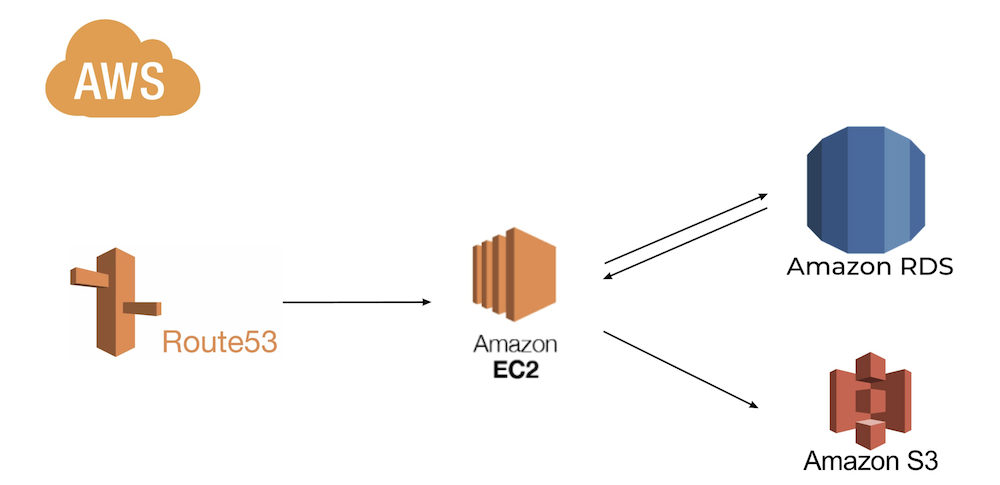
The flow is as follows:
- DNS Query: Route 53 resolves the domain to our EC2 instance.
- Load Balancing: Instead of using Elastic Load Balancer (ELB) due to cost concerns, we opted for Nginx as a reverse proxy to manage traffic routing.
- Web Service Hosting: Both FE and BE are hosted on a single EC2 instance to save costs. They run on different ports, with Nginx handling path-based routing.
- Data Storage: We use Amazon RDS for the database and S3 for static file storage.
By consolidating FE and BE on one EC2 instance and using Nginx for routing, we minimized costs while maintaining a scalable setup.
EC2 deployment practice
Here’s a step-by-step breakdown of how we deployed the project on an EC2 instance:
Install and Configure Nginx:
- Install Nginx on the EC2 instance.
- Configure Nginx to act as a reverse proxy, routing traffic to the appropriate service based on the URL path:
- API URI routes to the backend (port 8080).
- All other paths route to the frontend (port 8081).
{
"server": {
    "listen": 443,
    "ssl": true,
    "ssl_certificate": "/etc/nginx/ssl/server.crt",
    "ssl_certificate_key": "/etc/nginx/ssl/server.key",
    "locations": [
    {
        "path": "/SearchCityByName",
        "proxy_pass": "http://localhost:8080"
    },
    {
        ...
    },
    {
        "path": "/",
        "proxy_pass": "http://localhost:8081"
    }
    ]
}
}
Pull Code from GitHub:
- Set up SSH keys for secure access to GitHub.
- Cloned the project repository to the EC2 instance.
Frontend Deployment (Vue.js):
- Install Node.js and npm on the EC2 instance.
- Navigate to the frontend directory and run npm install to install dependencies.
- Build the Vue project using npm run build to generate static files.
- Use PM2 to manage the Node.js process.
- Convert PM2 to a systemd service for reliability.
Backend Deployment (Python):
- Install Python and created a virtual environment.
- Activate the virtual environment and installed dependencies.
- Install Gunicorn to serve the Python application.
- Start the backend with Gunicorn.
- Convert Gunicorn to a systemd service for automatic restarts.
Security and Authorizations:
- Configured AWS IAM roles for the EC2 instance to access RDS and S3 securely.
- Set up security groups to allow traffic only on ports 80 (HTTP), 443 (HTTPS), and 22 (SSH).
Some findings and thoughts
- Hosting both frontend and backend on a single EC2 instance may limit scalability for high-traffic scenarios. We plan to monitor performance and consider auto-scaling if needed.
- We aim to explore containerization with Docker to simplify dependency management and improve portability. Additionally, integrating a CI/CD pipeline with GitHub Actions could streamline future deployments.